
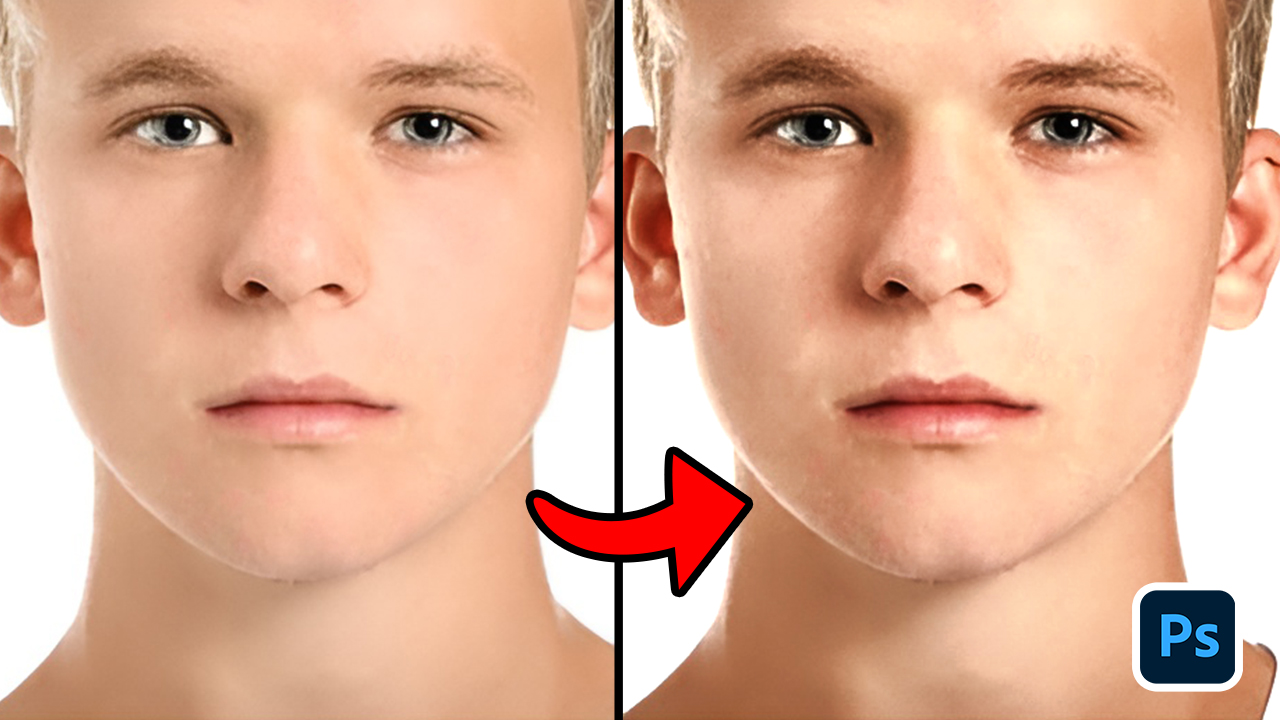
In this course, you learn “How to Dodge & Burn” in Adobe Photoshop. I've provided you with a PSD file you can download to follow along, it contain the image you see in the thumbnail of this article.
Download: https://drive.google.com/file/d/1TbZu1541K_4PjsM-CoqMLcLuBsWwS20E/view?usp=drive_link
How to Open a PSD File
Double click on the PSD file and if you have Adobe Photoshop installed on your Pc or Computer, it will automatically open.
Adjustment Layers Used in this Course
Curve Adjustment Layer: Shortcut is “Ctrl + M”, it is one of most artist favorite, cause it has the feature of brightening image freely (I mean at your own control, instead of moving a slider), and it's also used in compositing.
Steps to Dodge & Burn
Burn
1. Click on the adjustment layer icon at the bottom of the layer panel, select curve.
2. Place an anchor point at the graph line and move it downward, this will make the image dark
3. Double click on the “Curve” adjustment layer, to bring up the “Layer Style Panel”
4. At the bottom of the panel, you will find two gradient, one named "This Layer" the other named “Underlying Layer”. This Layer" adjusting the slider will cut out part of the areas on the image in the layer (adjusting the black will remove the dark areas in the image, adjusting the white will remove the highlight in the image), but in our case it is an adjustment layer which you may not notice. Underlying Layer this make the current layer to either affect the black areas on the layer below or affect the white areas on the layer below.
5. Move the slider on the white area of “This Layer” gradient to the left, hold “Alt” key to split the slider and move it apart to smoothen the transition. click ok
Dodge
1. Create a new “Curve” adjustment layer
2. Place an anchor point on the parallel line of the graph, move it upward (this will brighten the image)
3. Double click on the layer to bring up the “Layer Style Panel”
4. Move the slider on the black areas of “This Layer” gradient to the right, hold the “Alt” key to split the slider and move it apart to smoothen the transition, click ok
Comments (0)