
How to Whiten Teeth in Photoshop
Asset You'll Need in This Course
You'll need an image to practice with, luckily i have provided you the image so you can follow on in this course
Download Image: https://drive.google.com/file/d/1aM02qhaakGMUt4ntAGlRDRzo7wYMzezZ/view?usp=drive_link
How to Open a PSD File
Double click on the downloaded PSD file and it will automatically open in Adobe Photoshop, if you have Photoshop installed in your pc or computer
Tools and Adjustment Layer You Will Use in This Course
1. Lassa Tool: Shortcut is Letter “L” and it used to make a freehand selection, just as you can draw with you pen, this tool allows to make selection so
2. Hue/Saturation Adjustment Layer: Shortcut is “Ctrl + U” and it's used to increase color saturation, and also desaturate a color, just as we will do in this course.
Steps to Whiten Teeth
1. Open the “PSD File” in Adobe Photoshop
2. Select the “Lassa Tool” from the toolbar or pressed letter “L” on your keyboard
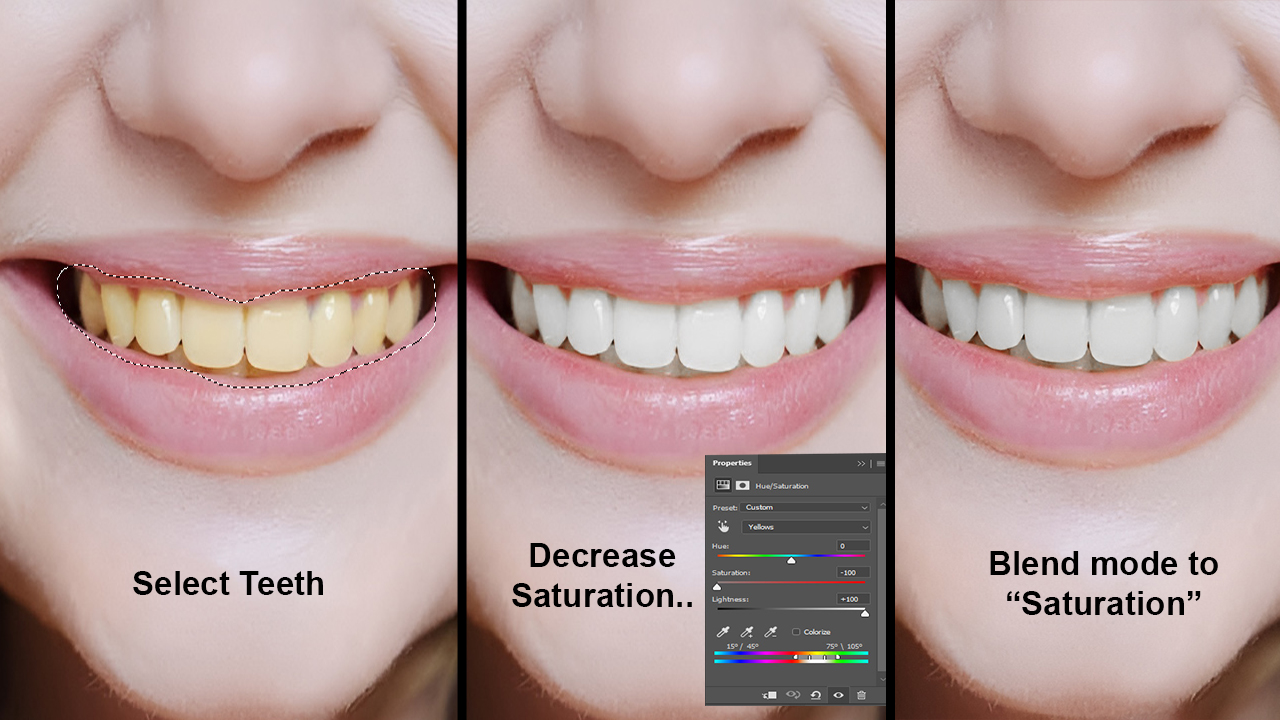
3. Make a selection of the yellow teeth
4. Click on the adjustment layer icon on the “Layer Panel” and select “Hue/Saturation” or pressed “Ctrl + U” on your keyboard
5. Pressed “Alt + 4” on your keyboard to select the yellow channel. the reason we choose the yellow channel is because the teeth has a yellow color and we want to desaturate that yellow color.
6. Decrease saturation to -100 and set lightness to +100
7. Last step, Change the "hue/saturation" adjustment layer blend mode to “Saturation”. Why should i do that ? it is because the “Saturation” blend mode tell Photoshop to only make the adjustment layer effect, to only affected the color of the underlying layer.
Tip
If you are a graphic designer or inspiring to be a graphic designer, then check out our “STORE” we have amazing business cards and flyers sold at low price to graphic designers and you can easily edit it in Photoshop, then sell to your customers. Click here: The home of digital products | Top Creativites
Comments (0)