
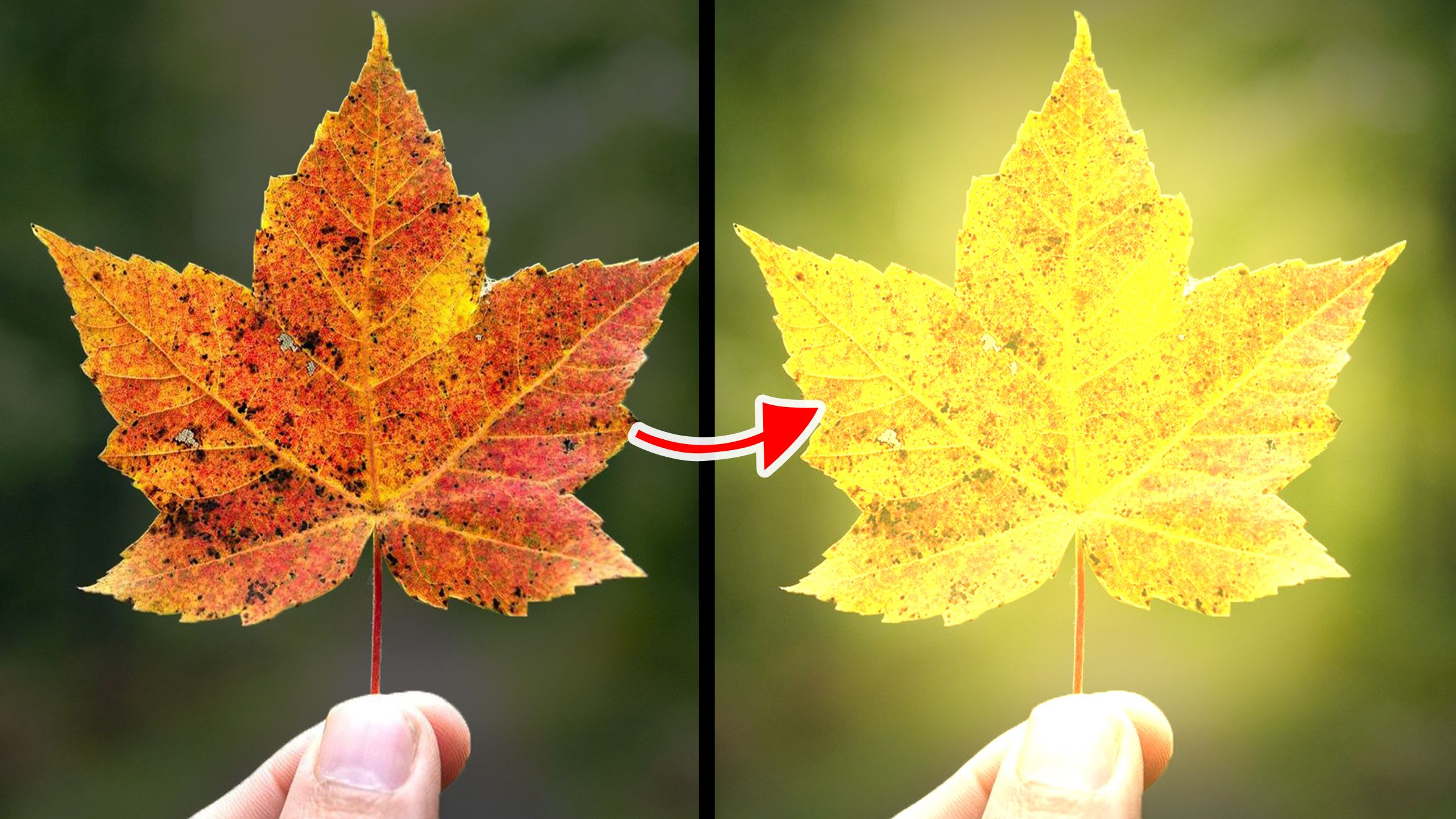
Blend modes, also known as blending modes are use to determine how colors from two or more layers interact and blend together to create a composite image. in this Article, you will learn about Adobe Photoshop “Linear Dodge” blend mode and what it is used for, with image to practice with. Download this PSD file to follow along this course.
Download: https://drive.google.com/file/d/19je8LZf2rT5_MB0Tp0xyEUOB4ge_Hdh4/view?usp=drive_link
How to Open PSD file
Double click on the downloaded PSD file, if you've installed Photoshop, it will automatically open.
Linear Dodge Blend Mode: Is a blend mode that brightens both the dark and light areas in the underlying layer. It's use to brighten dark images.
Practice 01:
1. Change the “Copy” layer blend mode to “Linear Dodge”
What will happen is, it illuminate the dark image.
It's also mostly used by artist to create glow effect
Download: https://drive.google.com/file/d/1xKSzUll7YS-J7sXE9R-HKLNC7s3Yu2gZ/view?usp=drive_link
Practice 02:
1. Double click on the “glow” layer right side
What happens is that a panel called the “layer style” panel appears
2. Disable “Transparency Shapes Layer” by clicking on the “Check Mark” icon and click “Ok” or the “Enter” keyboard key to apply setting
3. Change it blend mode to “Linear Dodge”
4. Select the brush tool (shortcut is letter "B")
5. Sample the orange color of the leaf with the “ALT” key, then paint on the leaf
6. Reduce the layer fill to “66%”
What happens is that it makes a glow effect on the leaf.
Comment below if you enjoyed this course?
Click Here to Learn About Other Blend Modes
Photoshop Courses | Top Creativites
Comments (0)