
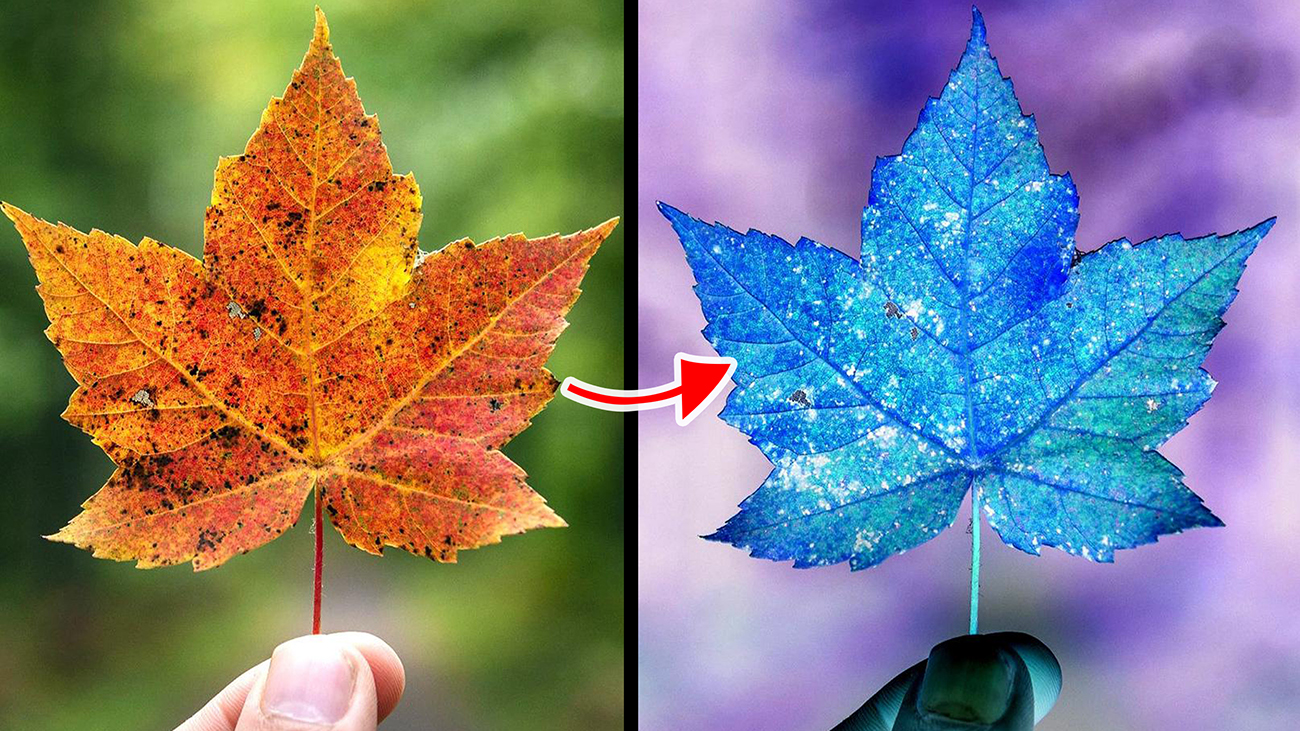
Blend modes, also known as blending modes are use to determine how colors from two or more layers interact and blend together to create a composite image. in this Article, you will learn about Adobe Photoshop “EXCLUSION” blend mode and what it is used for, with image to practice with. Download this PSD file to follow along this course.
Download: https://drive.google.com/file/d/1Hv4i4VMxG3wDwPRnhLxKl2hfs2g5t8Hy/view?usp=drive_link
How to Open PSD file
Double click on the downloaded PSD file, if you've installed Photoshop, it will automatically open.
Exclusion Blend Mode: It's used for inverting an image color. You'll notice this when the color fill is set to white and the blend mode is change to "Exclusion"
Practice 01:
1. Turn on the “Color Fill” layer by clicking the eye icon
2. Change it blend mode to “Difference”
What will happen is it invert the image colors, making the dark areas white.
Difference between the “Exclusion” and “Difference” blend mode
1. The difference blend mode totally turns an image to black, if the blend layer (the layer you applied the blend mode to) contains same image as the underlying layer. While, the Exclusion blend mode creates a low contrast invert of the image.
Practice 02:
1. Turn off the “Color Fill” layer by clicking on the eye icon
2. Change the “Copy” layer blend mode to “Exclusion”
What will happen is it creates a partial low contrast invert of the image.
Was this course helpful?
Click Here to Learn About Other Blend Modes
Photoshop Courses | Top Creativites
Comments (0)