
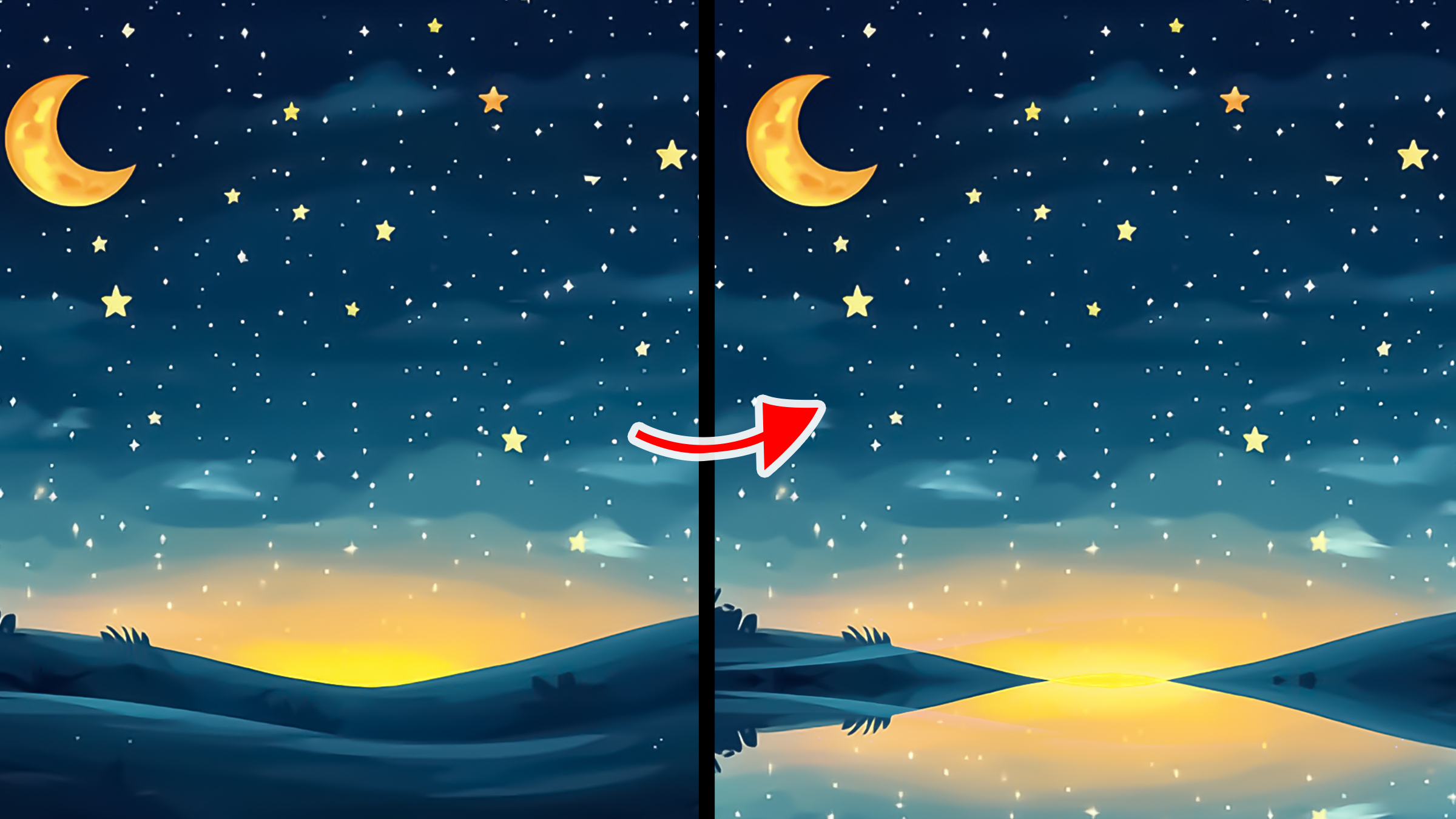
Blend modes, also known as blending modes are use to determine how colors from two or more layers interact and blend together to create a composite image. in this Article, you will learn about Adobe Photoshop “LIGHTEN” blend mode and what it is used for, with image to practice with. Download this PSD file to follow along this course.
Download: https://drive.google.com/file/d/1Vz5jF0crY2bJCSLm7gx_fGCkQy-f2BQA/view?usp=drive_link
How to Open PSD file
Double click on the downloaded PSD file, if you've installed Photoshop, it will automatically open.
Lighten Blend Mode: Use to hide dark font, images or dark areas in an image, leaving only the bright areas (highlights) visible. It's used to blend two images together, by making the dark areas invisible and the bright areas visible .
Practice 01:
1. Tun on the “Background Copy” layer by clicking on the “eye icon”
2. Change it blend mode to “Lighten”
what happens is that, it hides the dark areas in the image, blending it with the layer below (also called “underlying layer”)
it's also used to change the color of the dark areas in an image.
Practice 02:
1. Turn off the “Background Copy” layer
2. Turn on the “Color Fill” layer
3. Change it blend mode to “Lighten”
What will happen is that the color of the dark areas changes, but the bright areas color remain the same.
Other Facts about Lighten Blend Mode
1. It can't blend together, layers with same image and in the same position
Click Here to Learn About Other Blend Modes
Photoshop Courses | Top Creativites
Comments (0)